

Checkout doesn’t have to stay behind the counter. A mobile phone POS system runs sales software on a smartphone or tablet, while a compatible payment terminal processes transactions over Wi-Fi or mobile data. Staff can take sales on the shop floor, at a restaurant table or at an event.
That flexibility matters in Tanzania, where a fixed till can slow service or limit where customers pay. But the phone is only one part of the setup. The device, payment method, software costs and security controls all affect day-to-day use.
This guide explains how mobile POS payments move from customer to sale, which costs to consider and how to protect payment data. It compares phone-based systems with traditional tills and covers practical uses in retail and hospitality, from clothing shops to busy restaurants.
Key Takeaways
- Match the phone or tablet to the sales floor, then choose a compatible terminal and receipt printer for the way you serve customers.
- Map each payment step, from customer tap or card insert to the recorded sale, before taking the setup to a counter, table or event.
- Protect payment data with encryption, staff access controls, software updates and regular activity reviews.
- Compare ongoing software and transaction fees with hardware needs to understand the full operating cost, not just the starting setup.
- Use mobile checkout where staff need to serve customers away from a fixed till, including across retail floors and restaurant tables.
What is a mobile POS system?
In Tanzania, mobile POS setups use sales software on a smartphone or tablet, paired with a compatible reader or terminal. A mobile phone POS system can connect over Wi-Fi or cellular data, without needing a SIM card or landline dedicated to the POS.
Mobile POS Hardware Components
A mobile POS setup combines a smartphone or tablet, sales software, a compatible payment reader and, sometimes, a thermal printer. Each component has a distinct role: the screen records items, the reader takes payments and the printer produces receipts. For a small shop, these choices help match checkout to the available counter space and the way staff serve customers.
The software records sales, returns, voids and discounts, and sales data may synchronise in real time. A reader can pair with a smartphone or tablet over Bluetooth and use the device’s internet connection. For example, a shop assistant can record an item on a tablet, take payment through the paired reader and print a receipt.
Device Compatibility and Hardware Requirements
Compatibility means the POS software, operating system, reader, printer, and connection work together on the chosen device. This matters because an unsupported device or printer can interrupt checkout. For handheld use, a 5.5-to-7-inch screen is practical; a 10-to-12-inch tablet gives more room for product lists and sale details.
Compare the app’s requirements with the device before setup. A mobile POS terminal running Android 11 may have a 5.5-inch touchscreen, 2GB of RAM, and 16GB of storage. The recommended minimum is 2GB of RAM. Check battery capacity too: the suggested range is 2200-5200 mAh. A screen resolution of 1280 x 800 or Full HD helps keep product details clear.
Hardware costs depend on whether the business uses an existing phone or tablet or buys a dedicated terminal and accessories. These are separate cost lines, so include both when comparing setups.
Setup also means choosing the receipt workflow. Thermal printers measuring 58 or 80 mm suit mobile POS systems, and a print speed of 70 mm/s or higher is recommended. A lightweight device around 300 grams can be easier to carry between a counter and sales floor. Start by matching the software to the device, then pair the reader and printer, and test a sale before serving customers.
Mobile payment processing at stores and events
A mobile payment setup links sales software, a compatible terminal and an internet connection. In Tanzania, it lets a cashier take payment at a counter, restaurant table, curbside handover or event stall.
Payment Methods and Digital Wallets
Mobile POS payment methods are the card or wallet options a terminal can accept. The available choices matter because customers need a practical way to pay at checkout. Supported methods may include contactless cards, chip-and-PIN cards and digital wallets such as Apple Pay and Google Pay.
Before taking sales, match the reader to the payment types enabled by the setup. A customer might tap a contactless card, insert a chip-and-PIN card or present a supported phone wallet. A suitable terminal and a reliable connection can help payments process smoothly.
Contactless Payment Acceptance
Contactless payment uses near-field communication, or NFC, to transmit payment details between a card or device and a reader. It reduces the steps at checkout, which can help keep a queue moving at a shop or event.
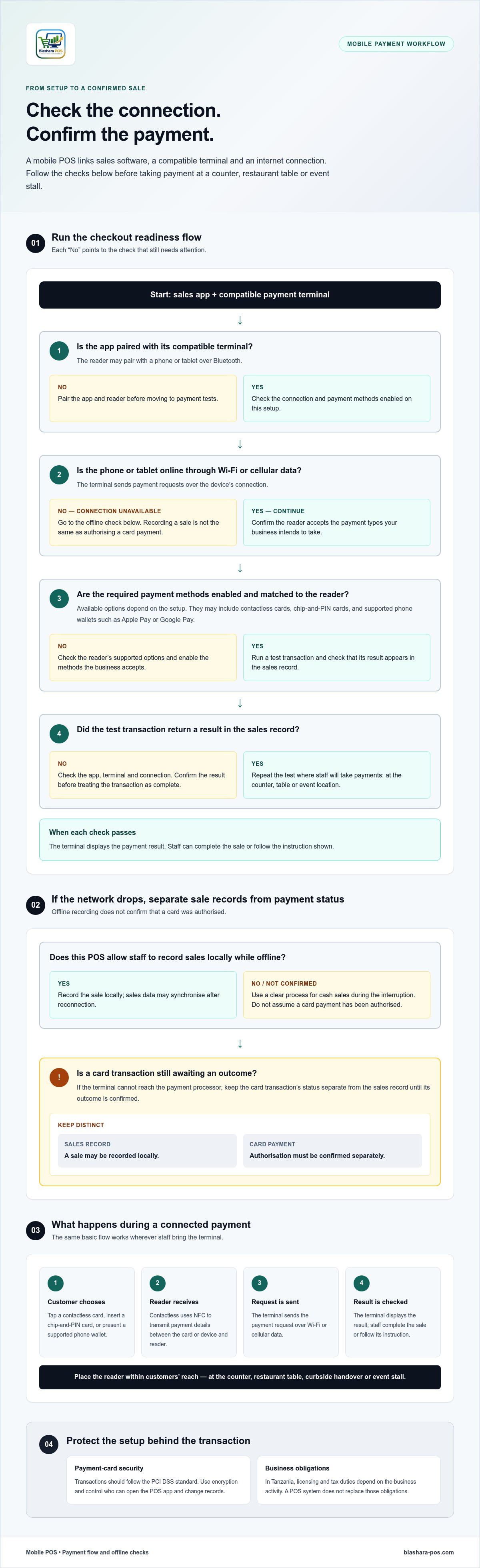
Position the card reader where customers can reach it, then let them tap their card or compatible device. The terminal sends the payment request over Wi-Fi or cellular data. Its screen displays the result, so staff can complete the sale or follow the instruction shown.
Offline Payment Acceptance
Offline acceptance describes what a POS can do when its internet connection drops. It matters because recording a sale and authorising a card payment are separate tasks.
A system may let staff record sales locally while offline, then synchronise the sales data after reconnection. That does not mean a card payment has been authorised. If the terminal cannot reach the payment processor, keep the card transaction’s status separate from the sales record until its outcome is confirmed.
At an event stall, decide how staff will record cash sales during a network interruption and identify any card transaction still awaiting a result. This keeps the sales record separate from payment confirmation.
Setting Up Mobile Payments
Setup connects the sales app, compatible terminal, payment methods and network. Prepare each part carefully, since a failure at any point can prevent checkout processing.
Start by pairing the app with its compatible terminal. Connect the phone or tablet through Wi-Fi or cellular data, then enable the card and wallet methods the business accepts. Run a test transaction and confirm the result appears in the sales record. Repeat the test at the counter, table or event location where staff will take payments.
Before opening, set a clear process for failed or interrupted transactions. Staff should check the terminal’s result before handing over goods and record cash sales through the POS. At a restaurant table, for example, a server can bring the connected terminal to the customer instead of sending them to a fixed counter.
Mobile POS security risks and safeguards
In Tanzania, business licensing and tax duties depend on the business activity; a POS system does not replace those obligations. For payment-card security, transactions should follow the PCI DSS standard.
A mobile point of sale can expose payment and sales data if a phone, tablet or staff account is poorly protected. Risks include a lost Android device, shared passwords, outdated software and unauthorised access to sales records. A practical safeguard is to control who can open the POS app and what each person can change.
Use encryption to protect sensitive payment data as it moves through the system. Limit staff access by role, so a cashier can accept payments without changing administrator settings. For example, a shop supervisor may need permission to review voids, while a cashier only needs the checkout functions required for their shift.
Keep the POS software and device operating system updated. Updates address security weaknesses, and a screen lock helps protect a tablet left unattended at the counter. Set a routine for installing updates and remove access for staff who no longer use the system. Don’t store passwords beside the device or share one login across a team.
PCI DSS, or Payment Card Industry Data Security Standard, provides a security framework for card transactions. Treat it as a core requirement when handling credit or debit card payments. The standard is separate from business licensing and tax obligations. A POS setup should also protect customer data and support orderly audit records.
Review activity logs for unusual actions, such as repeated failed sign-ins, unexpected refunds or sales voids outside normal duties. Compare the transaction record with the till close and investigate mismatches promptly. A clear review process helps staff spot account misuse without relying on memory or paper notes.
Physical handling matters too. Keep the card reader in staff view, inspect it for changes and secure the Android phone or tablet when it is not in use. At a busy checkout, assign one person to handle the device and another to manage the queue. This reduces the chance of exposing customer information on an open screen.
Build a short security routine around each shift: sign in with individual credentials, lock the device when unattended and review exceptions before closing. Consider cyber insurance as one part of risk planning, not a replacement for encryption, role-based access, software updates or log reviews. These controls help a small shop accept payments while keeping access and transaction handling accountable.
Business licensing and tax duties depend on the business activity, and a POS system does not replace those obligations. For payment-card transactions, follow the PCI DSS security framework, which is distinct from business licensing and tax requirements.
Smartphone POS versus traditional POS costs
A smartphone POS runs sales software on a phone or tablet, while a traditional POS often uses dedicated checkout hardware. Features, fees and ease of use depend on the software, payment setup and devices required.
Upfront and Ongoing Costs
Upfront costs cover the equipment and setup needed to start taking sales. Ongoing costs include software access, payment processing, connectivity and device upkeep. Separating these costs helps a small shop compare the full operating commitment, not just the cost of a till or phone.
Using an existing smartphone can reduce the need for new hardware, while a dedicated traditional POS may require a terminal, reader and printer. For example, a shop with a working tablet may only need compatible payment equipment. A shop replacing an old checkout may also need to account for installation and staff setup.
Ongoing costs depend on the selected software and payment arrangements. Transaction fees can vary by provider and payment method. Compare the total fee structure with sales volume and transaction size, rather than judging a system by one charge alone.
Software Costs and Transaction Fees
Software costs cover the POS functions used in daily operations, while transaction fees relate to payment processing. This distinction matters because inventory tools, sales reports and staff permissions may be included in the software separately from card acceptance.
Compare what each plan includes. A small retailer may need product records, stock adjustments and clear sales reports. A food shop may prioritise quick item entry and order handling. A traditional POS may bundle software with its terminal, while smartphone software can run on devices the business already uses.
Ease of use depends on the checkout workflow, not just the screen. Staff may be familiar with a phone, but a small display can slow product selection if the catalogue is difficult to navigate. A fixed traditional POS keeps the reader, receipt printer and till in one place. Test common tasks, such as adding an item, applying a discount, recording a return and checking a sale.
Operational efficiency can affect overhead indirectly. If sales and inventory records update together, staff spend less time transferring figures between a till and stock sheet. If the systems keep separate records, reconciliation takes more manual work. Compare how each setup handles a sale, a void and a stock adjustment before choosing.
For a fair comparison, list the hardware already available, the software functions needed and every recurring payment-processing charge. Match each cost to a daily task. A smartphone setup may suit a business that values mobility and already owns compatible devices. A traditional POS may fit a fixed counter where peripherals are built into the checkout routine.
Mobile POS use cases in retail and hospitality
Mobile POS makes sense when sales happen away from a fixed checkout. In Tanzania, a shop can use it on the sales floor, at a curbside handover or at an event stall. The practical test is whether staff can complete the sale where the customer is and record the transaction in the business’s sales system.
In retail, a handheld device helps staff serve customers across the shop floor. A clothing assistant can check an item, record its sale and take payment without directing the customer to a crowded counter. A mobile reader paired with the device over Bluetooth supports this workflow. The phone or tablet becomes a working till, not just a separate screen for browsing stock.
For a small shop, this can change how the counter is used. Staff can keep one checkout for complex sales and carry another device for quick purchases or queue support. POS software can record sales, returns, voids and discounts in real time. This gives the owner a clearer view of the day’s transactions than notes collected from separate checkout points.
Hospitality has a different pressure point: the distance between the table and the till. A server can bring a mobile terminal to the customer, record the order or sale, and accept payment at the table. Tableside mobile POS use in hospitality can lead to a 34.2% increase in turnover. The workflow also keeps staff on the floor instead of sending every customer to a fixed counter.
At a market event or temporary stall, mobile checkout lets a seller take sales where service happens. A phone or tablet running POS software can connect to a compatible terminal over Wi-Fi or cellular data. This suits a stall where customers move between displays or a curbside handover outside. Keep the device within network range and confirm each payment result before completing the sale.
Choose the workflow before deciding where staff should carry the device. A clothing shop may need floor coverage and quick product lookup. A restaurant may need table service and a handheld payment terminal. A fixed counter still makes sense for routine checkout, while mobile use adds value where staff regularly move. The strongest setup records sales consistently at both points.
Map your retail sales floor or hospitality service flow, then explore POS software for retail operations.
BiasharaPOS: BiasharaPOS
BiasharaPOS gives small shops one system for recording sales on a phone, POS terminal or computer. Its Retail and Clothing modules support shop-floor sales, while Restaurant supports food-service operations. Staff can also record counter sales without a network, then use the system’s sales tools to track business activity.
Use it when you need more than a way to ring up items. BiasharaPOS shows real net profit after each sale and is designed to be audit-ready for TRA. The system is free for up to 1,000 sales per month, giving smaller businesses room to manage sales before moving beyond that monthly volume.
To explore how it fits your shop’s workflow, visit BiasharaPOS.
Put Your POS Plan to Work
Make the next step practical. Map where staff take sales, who needs access and how each transaction should appear in your records. Then compare that workflow with the devices and payment methods your business already uses. A mobile phone POS system works best when it supports how your team serves customers, rather than adding another process to manage.
BiasharaPOS brings together POS options for Restaurant, Clothing and Retail businesses. Consider how those workflows match your daily sales and what your team needs from its setup. A clear plan makes it easier to assess the fit before changing how staff handle checkout.
Contact BiasharaPOS about mobile POS to discuss your business workflow. Choose a setup that helps your team serve customers and keep sales moving.
Frequently Asked Questions
How does mPOS work?
mPOS uses sales software on a portable device to record purchases and manage checkout tasks. Staff select items, confirm quantities, apply any permitted discount and save the sale. If the customer pays by card, a compatible terminal sends the payment request for processing. For example, a shop assistant can ring up an item on the sales floor, then check the saved transaction in the day’s sales record.
How much does POS on mobile devices cost?
The cost depends on whether you already have a suitable phone or tablet, which accessories you need and how the software is billed. Payment processing charges are separate. Compare costs against your checkout needs by listing device purchases, software access, receipt printing and transaction charges. A shop with an existing device may have different setup costs from one buying a complete dedicated terminal arrangement.
What are the benefits of a mobile POS?
A mobile setup lets staff bring checkout to the point of service instead of sending every customer to one till. That can suit a clothing shop with customers browsing across the floor or a restaurant serving tables. It can also keep sales records together when different staff handle transactions. The main benefit is fitting checkout to the work pattern, not simply replacing a fixed device with a phone.
What does using a smartphone as a POS mean?
It means using a smartphone to run sales software and record transactions, rather than using the phone only for calls or messaging. Staff select products, enter quantities and save sales through the app. A separate compatible reader or terminal may handle card payments. For a small shop, the phone can support checkout during a queue while the main till remains available for other customers.
What hardware is required to operate a mobile POS?
The basic setup needs a compatible smartphone or tablet and POS software. Accepting cards requires a compatible payment terminal or reader. A thermal printer is useful when customers need printed receipts, while a charging arrangement helps keep the device ready during business hours. Choose equipment for the work: a handheld device for staff moving around a shop or a tablet that stays at the counter.
What is a mobile POS, and why is it popular?
A mobile POS is a sales system operated through a portable device, such as a smartphone or tablet. It is useful when checkout needs to move with staff, including at restaurant tables, on shop floors or at temporary stalls. Businesses can use existing devices if the software supports them, reducing reliance on a fixed checkout layout. Its appeal lies in this flexibility and the ability to record sales at different service points.
What types of POS are available?
Common POS formats include fixed countertop systems, mobile systems running on phones or tablets, and dedicated handheld terminals. A fixed till suits checkout that stays in one place. A phone-based setup supports staff who move between customers. Dedicated handheld equipment combines a portable device with checkout functions. Choose based on where sales happen, which tasks staff perform, and whether receipts or card acceptance are needed.
What is a mobile phone POS system and how does it work?
A mobile phone POS system uses a smartphone to run sales software and record transactions. Staff enter the sale in the app, then use a compatible reader or terminal if the customer pays by card. For a small shop, it can support queue service or sales away from the counter. Check the sales record after each transaction to confirm it was saved correctly.

