

A free POS system in Tanzania can cover up to 1,000 sales per month. The right fit also needs to handle the work behind each sale, from stock updates to daily reporting.
Keeping costs down matters, but a free POS system in Tanzania is useful only if checkout runs smoothly and the system fits your business. A clothing shop, restaurant, pharmacy and barbershop each need different workflows at the counter.
This guide explains what free POS options can do for inventory, barcode scanning, local payment workflows, checkout and reports. It also covers staff training and support, plus the practical details to weigh when comparing providers in Tanzania. You’ll see where offline sales matter, what to look for in a system, and how to judge whether a monthly sales limit suits your operation. That way, you can assess the real day-to-day fit, not just the word “free.”
Key Takeaways
- Map how stock moves through your business, then assess whether inventory updates and barcode scanning fit your counter routine.
- Match the payment workflow to how customers pay in Tanzania, including the mobile money services your business uses.
- Use checkout and sales reports to track product performance, review sales patterns and keep daily records clear.
- Train staff on the tasks they handle most, and compare support options before relying on a system during busy hours.
- Check whether the free allowance fits your sales volume: BiasharaPOS is free for up to 1,000 sales per month.
Inventory management and barcode scanning
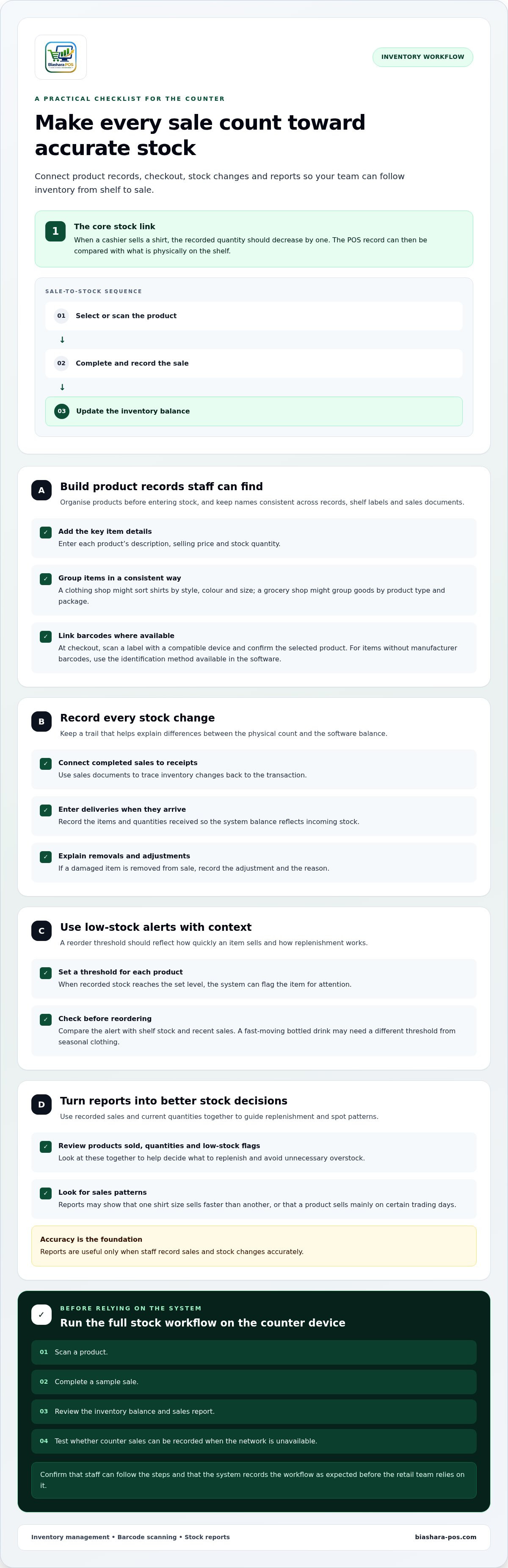
For a retail counter in Tanzania, inventory management connects each sale to the stock record. POS software can process sales, track inventory and produce reports. When a cashier sells a shirt, for example, the recorded quantity should decrease by one. This link helps owners compare what is on the shelf with the system’s records.
Barcodes make product selection faster and more consistent. Add each item’s description, selling price and stock quantity to the software, then link its barcode to the record. At checkout, scan the label with a compatible device. The cashier can confirm the product before completing the sale, and the POS updates inventory. For items without manufacturer barcodes, use the product identification method available in the software.
Before entering stock, organise the product list so staff can find items quickly. A clothing retailer might separate shirts by style, colour and size. A grocery shop might group goods by product type and package. Use consistent names in product records, shelf labels and sales documents. This makes stock counts and sales reports easier to read.
Sales documents help trace changes in inventory. A useful setup links each completed sale to its receipt and records stock received or adjusted. When a delivery arrives, for example, enter the items and quantities received. If a damaged item is removed from sale, record the adjustment and reason. These records help owners investigate differences between the physical count and the software balance.
Low-stock alerts can help staff act before popular items run out. Set a reorder threshold for each product based on its sales rate and how replenishment works. When recorded stock reaches that level, the system can flag the item. Check the alert against shelf stock and recent sales before reordering. A threshold for fast-moving bottled drinks may not suit seasonal clothing.
Use inventory reports to turn daily sales into purchasing decisions. Compare products sold, current quantities and low-stock flags. A report may show that one shirt size sells faster than another, or that a product sells mainly on certain trading days. Use these patterns to adjust replenishment and avoid unnecessary overstock. Reports are useful only when staff record sales and stock changes accurately.
When comparing a free POS system in Tanzania, test the full stock workflow on the device used at the counter. Scan a product, complete a sample sale, review the inventory balance, then check the sales report. Confirm that staff can follow the steps and that the system records counter sales when the network is unavailable. This test can reveal gaps before your retail team relies on the software.
Payment-rail integration and country-specific setup
In Tanzania, choose software that displays Tanzanian shillings and supports your local tax and receipt workflow. Check how it records cash, mobile money and other payment methods your business accepts.
Mobile Money Payment Integration
Mobile money integration links a payment choice at checkout to the sale record. For M-Pesa, check that the workflow records payment against the correct transaction, rather than leaving it as an unlabelled sale. Staff should be able to identify the payment type, reconcile recorded sales against transaction records, and handle a failed or reversed payment without confusing it with completed revenue.
Map the customer’s payment journey before setup. Note how staff confirm payment, close the sale and issue the receipt, then test each step with a sample transaction. This shows whether the POS records the payment accurately, even when confirmation happens outside the till.
Local Currency and Tax Setup
Set the display and sales records to Tanzanian shillings, then review how prices, totals and change appear on screen and receipts. Check that tax settings match the business’s invoicing process. Taxable amounts and final totals should be clear to staff, without relying on mental calculations at checkout.
TRA VFD receipting and fiscal printer integration connect the POS sale to the business’s receipt workflow. Map how a transaction moves from checkout to receipt, including what happens if a printer or connection is unavailable. Test the device, receipt format and tax fields before live sales.
POS Setup and Startup
To start using a free POS system, create the business record, set currency and tax details, add products, and configure accepted payment types. Assign staff access and practise a sale, refund or correction. Begin with a controlled product list and a sample transaction so the team can catch setup errors before handling live customer payments.
Internet access affects payment workflows. Test the system during a network interruption and learn which actions remain available offline. A POS may record a sale without a connection, while mobile money confirmation still depends on its own payment process. Keep these steps distinct in staff instructions and end-of-day reconciliation.
Before opening the system to customers, complete a short acceptance test: make a cash sale, record a mobile money payment, issue a receipt, and compare the transaction record with the payment record. Include the TRA VFD or fiscal printer workflow used at the counter. This can expose mismatched totals, missing receipt details and unclear staff steps.
For a smoother rollout, document the till’s payment and receipt steps in a simple staff guide. A defined POS setup workflow can help keep currency, payment recording and receipt handling aligned.
Sales checkout, billing, and reporting
A point of sale should make transactions easy to complete and trace. Review how checkout records sales, payment methods, corrections and reports during daily operations.
Checkout and Billing Workflows
At checkout, staff need a clear path from product selection to receipt. Test a sale with a barcode scanner, then search manually for items without labels. Before recording payment, confirm that the displayed item, quantity, price and total match the transaction.
Run another test for a discount, void or correction. The record should show what changed and preserve a clear transaction history. For a busy retail counter, compare the steps needed to complete a sale on the actual device and hardware. A simple flow helps new staff avoid choosing the wrong item or payment method.
Sales, Profit, and Expense Reports
Sales reports can show which products sell best and when. Compare fast-moving goods with slower items, then plan purchases around actual sales patterns. A daily summary also helps reconcile recorded transactions with cash and mobile money received.
Profit reporting requires more than sales totals. Before relying on a profit figure, check whether the system accounts for product costs and recorded expenses. Enter expenses consistently, such as packaging or store supplies, and assign each to the appropriate category. This makes comparisons across trading days more useful.
Cash flow depends on money received as well as money spent. Use sales totals alongside expense records to see how transactions affect available funds. A strong sales day can still leave less cash on hand after supplier payments or operating expenses. Separate cash, card and mobile money totals in the end-of-day report to make reconciliation clearer.
Sales analytics can guide practical decisions. Compare product performance by trading period, payment method or staff member when the software provides those views. A report showing peak demand can help plan staff coverage. A report showing declining sales for a product can prompt a review of its price, placement or stock level.
Financial report exports can move records into the business’s existing accounting workflow. Review the available date ranges, report fields and file formats. Export a sample and compare its totals with the POS screen. Check that transaction dates, taxes, payment types and expense categories remain readable after export.
Keep reporting consistent. At closing, review sales totals, payment breakdowns, corrections and expenses, then save the day’s records. POS reports are most useful when staff follow the same checkout steps and record changes promptly. This gives owners a clearer view of sales, cash flow and profit, rather than a total that hides how the business reached it.
Staff training and customer support
Staff need practice with the POS tasks they handle during a shift. Train each cashier to open a sale, select a payment method, correct an entry and close the till. Use a sample transaction before serving customers. Managers should also practise reviewing sales records and updating staff permissions where available.
Keep training focused on the counter routine. A clothing store can practise finding an item, applying an approved discount and completing checkout. A pharmacy can practise searching for a product and recording the sale accurately. Show staff where to find help instructions in the software, then let each person complete the steps independently. This can reveal confusing screens before a busy trading period.
Customer credit needs clear records. If a store sells on account, record the customer, sale, amount owed and each repayment. Review outstanding balances regularly and correct entries promptly when a payment arrives. Separate credit sales from cash and mobile money in the daily review. This makes it easier to see what has been paid and what remains due.
Customer history can support loyalty and membership workflows. A POS system can store purchase histories and support loyalty rewards. For example, a retailer could use recorded purchases to identify returning customers and apply a defined reward at checkout. Keep the rules simple for staff: explain which purchase qualifies, how to record the reward and how it appears on the receipt.
Before using loyalty features, decide how the store will identify members. Staff might search by customer record or use another available identification method. Practise adding a customer, attaching a sale and checking the history. This helps prevent duplicate profiles and keeps reward records useful. Enter customer details consistently so staff can find the right record at checkout.
For stores with unstable internet, include offline work in staff practice. Have employees follow the system’s offline sales process, then practise reviewing or syncing records when connectivity returns. Make clear which actions work without internet access. This helps staff distinguish a sale recorded locally from a payment that still needs separate confirmation.
Local customer support is a practical selection point for businesses in Tanzania. Compare available support channels, the languages staff can use, and whether guidance covers setup, daily workflows and troubleshooting. To assess its usefulness, describe a common issue, such as a receipt that fails to print, and see whether the guidance explains the next operational step. Keep support details accessible near the till.
Assign one staff member to maintain the store’s training notes. Update them when payment steps, permissions or loyalty rules change. Short instructions beside the counter can explain how to open a sale, handle a correction and find customer credit records. Consistent steps make daily operations more efficient, even when staff rotate between shifts.
POS providers in Tanzania
Retail shops need inventory tracking, restaurants need table and kitchen workflows, and small businesses often need simple checkout. Free plans may limit transactions or features, so consider internet access, payment workflows and support as well.
Provider Comparisons by Business Type
Compare systems against the work at your counter. A retail shop needs product lookup, stock updates and reports that support replenishment. A restaurant may need table management, kitchen display functions and clear order handling between the floor and kitchen. A smaller business may value a short checkout flow and straightforward daily summaries over advanced controls.
Match hardware to the workflow. A shop using barcode labels needs compatible scanners, while a counter issuing printed receipts needs a suitable printer. Test the software on the device staff will use. For a restaurant, follow an order from table entry to kitchen and payment. For a small shop, test product search, checkout and end-of-day review.
POS solutions in Tanzania range from cloud-based options with monthly fees to enterprise systems. Compare the operating model, included features and support arrangement, not just the starting price. Cloud systems depend on internet access for connected tasks, while offline capability matters where connectivity is unstable. Start with the actual daily workflow.
Free POS Risks and Limitations
“Free” describes the price, not necessarily the operating fit. Check whether the plan has a sales limit, restricted reports, limited staff access or fewer integrations. A busy retail shop may outgrow a transaction allowance, while a restaurant may need a feature unavailable in its chosen plan. Treat each limit as a practical operating constraint.
Connectivity affects daily work. Test what happens to sales records during an internet interruption, then learn how offline transactions are handled when service returns. Separately, check whether the payment workflow, receipt process and printer setup suit the business in Tanzania. A mismatch can add steps or make reconciliation harder.
Support is another selection criterion. Useful features can still slow operations if staff cannot resolve checkout or reporting issues. Compare available support channels and guidance for common tasks. Then run a practical trial with sample products, a sale, a receipt and a report before relying on the system.
Use a short comparison sheet before choosing: business type, essential features, internet needs, hardware, payment workflow, reporting and support. Mark each item as essential or optional. This grounds comparisons in daily work rather than long feature lists. If a restaurant needs table service, test that workflow first. If retail stock accuracy matters most, start with inventory tracking.
Choose a system that fits current operations and leaves room for the next stage of selling. Review a POS option for retail and restaurants against your daily workflow.
BiasharaPOS: BiasharaPOS
BiasharaPOS suits businesses that want sales, stock and profit records in one POS workflow. It’s free for up to 1,000 sales per month, with real net profit shown after each sale.
BiasharaPOS offers Retail, Clothing and Restaurant options to match different business needs. Sell from a phone, POS terminal or computer, and continue counter sales without a network. An online shop with delivery also supports sales beyond the physical counter. The system is designed to be audit-ready for TRA, helping keep business records organised.
If your sales volume fits the monthly allowance and these workflows match your operation, visit BiasharaPOS to learn more.
Put the right POS workflow to work
Turn your requirements into a practical counter routine. Before adopting a free POS system in Tanzania, decide which tasks must work smoothly from the first sale and which can wait. This keeps your choice grounded in daily operations, not just a long feature list.
BiasharaPOS offers Restaurant and Clothing options for businesses with different workflows. Consider how staff will use the system during a normal shift, then align the setup with those needs. A clear operational fit matters more than choosing tools your team will not use.
Bring your POS needs into focus before making a decision. Contact BiasharaPOS to discuss your POS needs and take the next step toward a workflow that fits your business.
Frequently Asked Questions
Which free POS systems are available in Tanzania?
BiasharaPOS is an option for Tanzanian businesses seeking a free POS system. Its modules cover different business types, including retail, clothing and restaurants. Compare systems by matching their workflows to your daily operations, rather than choosing by the free label alone. A clothing shop, for example, needs a different product setup from a restaurant managing orders. Choose a system that handles your business’s actual transactions and records.
What features do free POS systems in Tanzania include?
Features vary by system and free plan. Common POS functions include recording sales, tracking stock and producing reports. Some systems also support staff permissions, customer records or business-specific workflows. Before adopting one, list the tasks staff perform each day, such as processing returns or reviewing shifts. Compare those tasks with the plan’s features and limits to distinguish essential counter tools from extras your business may not use.
Do free POS systems in Tanzania work offline and support mobile devices?
Some POS systems can record counter sales without an internet connection, and some run on phones or computers. These are separate capabilities, so assess each against your operating routine. A mobile device may suit a small counter, while offline sales help during a connection interruption. Remember, recording a sale offline does not confirm an external mobile money payment. Staff need a clear process for handling both records.
Which payment methods and local payment providers do Tanzania POS systems support?
Payment support varies by system. Businesses in Tanzania often assess whether a POS workflow can record cash and mobile money payments, including M-Pesa. A POS record shows how a customer paid, while payment processing is a separate function. Map the till routine for each method: staff record the payment type, link it to the sale and reconcile totals against payment records. This keeps sales records accurate without confusing them with the movement of funds.
What hardware is needed to use a free POS system in Tanzania, and how much does it cost?
Depending on the system, a business may use a compatible phone, POS terminal or computer. Barcode scanners, receipt printers and cash drawers are common additions, but not necessary for every counter. Hardware costs depend on the device and peripherals required by the workflow. First identify whether staff need barcode scanning, printed receipts or a cash drawer. Then match the setup to checkout instead of buying equipment the business will not use.
